

Key Takeaways
- Voice Volume Importance: Control of voice volume in Chevrolet vehicles is crucial for a distraction-free driving experience, impacting navigation prompts, hands-free calls, and more.
- Adjustment Methods: Voice volume can be adjusted easily using the infotainment system, steering wheel controls, MyChevrolet app, or by consulting the user manual specific to your vehicle model.
- Step-by-Step Process: To turn off or adjust voice volume, access the audio settings through the infotainment system, locate the “Voice Volume” section, and utilize the slider or buttons for adjustments.
- Troubleshooting Issues: Common voice volume problems can be solved through software updates, adjusting settings, restarting the infotainment system, or ensuring unobstructed microphone access.
- User Preferences: Drivers appreciate the convenience of quick adjustments via steering wheel controls and the MyChevrolet app, emphasizing the need for easy access to settings while driving.
- Consult the Manual: For persistent issues, the user manual offers tailored guidance, helping drivers understand how to troubleshoot and adjust their vehicle’s voice control systems effectively.
Have you ever found yourself in a situation where the voice commands in your Chevrolet are just too loud? Maybe you’re trying to enjoy your favorite playlist or focus on the road, but that persistent voice keeps interrupting. You’re not alone—many drivers face this common annoyance.
Overview of Voice Volume in Chevrolet Vehicles
Voice volume in Chevrolet vehicles plays a crucial role in your driving experience. It includes voice commands, navigation prompts, and hands-free calls. When the voice volume is too loud, it can interfere with music or conversations, causing distraction.
Chevrolet offers various systems that control the voice volume. These include the MyChevrolet app, infotainment systems, and steering wheel controls. Adjusting these settings ensures a more personalized driving experience.
You may find voice volume adjustments through these methods:
- Infotainment System: Navigate to the settings menu. Look for ‘Audio’ or ‘Voice’ settings; here, you’ll find volume controls for voice commands.
- Steering Wheel Controls: Use the volume buttons on your steering wheel. Press the ‘-‘ button to decrease the voice volume during a command or prompt.
- MyChevrolet App: If your vehicle supports it, open the app. Locate the voice settings under the vehicle settings section for remote adjustments.
- User Manual: Check your vehicle’s user manual for specific instructions on voice volume adjustments tailored to your model.
These methods allow you to optimize your Chevrolet’s voice volume according to your preferences, ensuring you enjoy your drives without unnecessary distractions.
Step-by-Step Guide to Turn Off Voice Volume
Turning off voice volume in your Chevrolet can enhance your driving experience. Follow these simple steps to adjust the settings effectively.
Recommended Products

Compatible with: 2007-2013 Suburban 1500/ 2500, 2007-2011Silverado 1500/2500/3500 HD, 2009-2012 Traverse, 2009 2010 2012 Buick Enclave, 2007-2013 GMC Sierra 1500/2500/ 3500 HD, 2007 2008 2009 2011 2012 2013 GMC Yukon (Not fit for07-08 yukon denali), 2007 2009 2010 2012 2013 GMC Yukon XL (Not fit for 07 yukon xl 1500), 2010 GMC Acadia, 2007 2008 2009 2011 2012 2013 2014 Cadillac Escalade. Please check that your car model is compatible before placing an order.

Fit for: for Chevrolet Silverado 2500 HD 2014, for Chevrolet Silverado 3500 HD 2014, for GMC Sierra 2500 HD 2014, for GMC Sierra 3500 HD 2014, for Chevrolet Silverado 2500 HD 2013, for Chevrolet Silverado 3500 HD 2013, for GMC Sierra 2500 HD 2013, for GMC Sierra 3500 HD 2013, for Chevrolet Silverado 2500 HD 2012, for Chevrolet Silverado 3500 HD 2012, for GMC Sierra 2500 HD 2012, for GMC Sierra 3500 HD 2012, for Chevrolet Silverado 2500 HD 2011, for Chevrolet Silverado 3500 HD 2011.

radios vary based on your vehicle, trim selection, or upgrade options. make sure to check part note information for the correct option configuration on your vehicle. for example, ‘notes: stereo cassette (um6)’ would designate a radio that has a cassette deck with vehicle option code of um6. the option content of a vehicle is typically located in the glove box or the bottom side of the spare tire cover.
Accessing the Audio Settings
- Start your vehicle: Ensure your Chevrolet is in the “On” or “Run” position.
- Navigate to the infotainment system: Use the touchscreen display to access the main menu.
- Select ‘Settings’: Look for the gear icon or an option labeled ‘Settings.’
- Tap ‘Audio’: In the settings menu, find the ‘Audio’ option. This is where you can adjust various sound features.
Adjusting Voice Volume Levels
- Locate the ‘Voice Volume’ setting: Within the audio settings, find a subcategory specifically for voice volume.
- Use the slider or buttons: Adjust the voice volume using the on-screen slider, or if available, use the physical volume buttons on the steering wheel or dashboard.
- Test the volume: After making adjustments, ask a voice command to check the volume level. If needed, repeat the steps above for further adjustments.
- Save changes: Your adjustments often save automatically, but confirm your settings before exiting the menu.
By following these steps, you can easily manage the voice volume in your Chevrolet and minimize any distractions while driving.
Common Issues and Solutions
Chevrolet drivers often encounter voice volume issues that disrupt their driving experience. Here are some common problems and their solutions.
Recommended Products
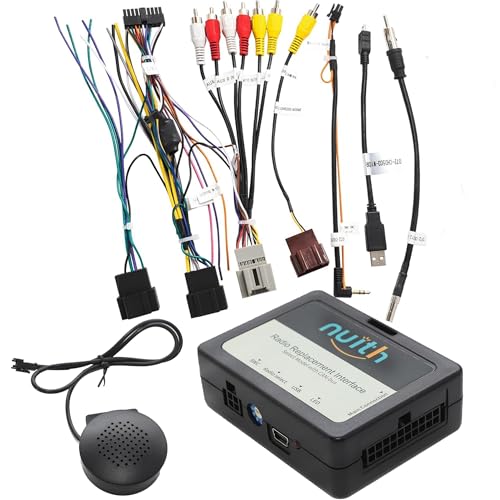
Silverado radio wiring interface facilitates the replacement of the OEM radio with an aftermarket receiver in non-amplified vehicles that utilize the G-M LAN data bus system

Compatible Models: Video remote control fit for Chevrolet Suburban Tahoe 2015-2020, fit for Cadillac Escalade 2015-2020 SRX 2013-2016 XTS 2015-2016, fit for GMC Yukon 2015-2020

Widely Compatible: Fits for Cadillac Escalade 2015-2020, fits for Cadillac SRX 2013-2016, fits for Cadillac XTS 2014-2016. Fits for Chevrolet Suburban Tahoe GMC Yukon 2015-2020. Replace 84012998, 23432163, 20984767, 23141427
Troubleshooting Volume Control Problems
- No Response from Volume Controls
If the volume controls aren’t responding, check for a software update in the infotainment system settings. An outdated software version may cause control issues.
- Voice Volume Too Loud or Soft
If voice commands sound either too loud or too soft, navigate to the audio settings in your infotainment system. Adjust the ‘Voice Volume’ slider and test various levels until you find a comfortable setting.
- Inconsistent Voice Volume
To address unexpected volume changes, restart the infotainment system. Sometimes, a quick reset solves inconsistency issues.
- Bluetooth Connection Problems
If voice volume issues arise during Bluetooth calls, ensure your device is properly connected. Disconnect and reconnect the Bluetooth device to refresh the connection.
- Obstructed Microphone
Check that the vehicle’s microphone is not blocked by objects or debris. Clear any obstacles to ensure clear voice command recognition.
- User Manual Guidance
If problems persist, consult your vehicle’s user manual. It contains specific troubleshooting steps tailored to your Chevrolet model.
By addressing these common issues, you can enhance your overall driving experience and enjoy a more seamless interaction with your vehicle’s voice commands.
User Experiences and Feedback
Many Chevrolet drivers face challenges related to voice volume. Frustration often arises when voice commands interrupt music or important conversations. Users report the command volume being excessively loud, leading to distractions while driving.
Feedback indicates that adjustments are crucial for a better driving experience. Here’s what drivers have shared:
- Infotainment System Use: Drivers appreciate the straightforward access to voice volume settings via the infotainment system. They find it helpful to adjust the volume quickly when it disrupts their enjoyment.
- Steering Wheel Controls: Quick adjustments with steering wheel controls receive positive remarks. Many users prefer these physical buttons for immediate volume changes, allowing them to maintain focus on the road.
- MyChevrolet App: Some drivers enjoy the convenience of using the MyChevrolet app for remote adjustments. This feature allows them to change settings on the go without needing to navigate the infotainment system while driving.
- User Manual Insights: Several users mention that consulting the user manual provides clarity on specific models. Tailored instructions help them understand how to ameliorate volume issues effectively.
Real-world experiences show the importance of addressing voice volume. By implementing adjustments, drivers significantly enhance their interactions with in-car systems.
Conclusion
Adjusting the voice volume in your Chevrolet can make a world of difference in your driving experience. By following the steps outlined in this article you can easily tailor the voice commands to suit your preferences. Whether you prefer using the infotainment system or the MyChevrolet app it’s all about finding what works best for you.
Don’t let distracting voice prompts take away from your enjoyment on the road. With a few simple adjustments you can create a more pleasant and focused driving environment. Remember to test your settings and make any necessary tweaks to ensure everything’s just right. Happy driving!
Frequently Asked Questions
How do I adjust the voice volume in my Chevrolet vehicle?
You can adjust the voice volume by navigating to the audio settings in the infotainment system. Locate the ‘Voice Volume’ option and use the sliders or buttons to make your adjustments. Alternatively, use the volume controls on the steering wheel or the MyChevrolet app for remote changes.
What if my voice commands are too loud?
If your voice commands are too loud, access the infotainment system settings, find the ‘Voice Volume’ setting, and lower the volume. Also, consider checking if the vehicle’s microphone is unobstructed, as this can affect volume levels.
What should I do if my volume controls aren’t responding?
If your volume controls aren’t responding, check for software updates and restart the infotainment system. If the issue persists, consult your vehicle’s user manual for specific troubleshooting steps tailored to your Chevrolet model.
Can I use the MyChevrolet app to control voice volume?
Yes, the MyChevrolet app allows you to make remote adjustments to your vehicle’s voice volume settings. This can be especially convenient for quick changes while you’re on the go.
Why is the voice volume in my Chevrolet sometimes inconsistent?
Inconsistent voice volume can occur due to Bluetooth connection issues or interference. Make sure your device is properly connected, and check the ‘Voice Volume’ slider in your infotainment settings to ensure it’s set correctly.
How can I turn off voice commands completely?
To turn off voice commands, access your vehicle’s settings through the infotainment system and deactivate voice recognition features. Consult your user manual for specific instructions for your Chevrolet model.
What are common problems related to voice volume in Chevrolet vehicles?
Common voice volume problems include excessive loudness, unresponsiveness of volume controls, and Bluetooth connection issues. Address these concerns by checking settings, performing software updates, and ensuring the vehicle microphone is unobstructed.
